
Gmail Aliases: Different Signatures for New Emails and Replies


Yes—Gmail can use a different signature for each alias and a different default for new emails versus replies and forwards. The important part is that these are two separate settings:
- Gmail must know the alias as a Send mail as address.
- You must assign signature defaults for that address under Signature defaults.
This guide covers Gmail on a computer. Google's signature instructions for Android and iPhone use separate mobile settings, so do not assume the desktop mapping described here will control every message sent from the Gmail mobile app.
The setup you are building
Imagine that one inbox sends mail as both:
alex@mysigmail.comfor direct partner outreachpartnerships@mysigmail.comfor general partnership inquiries
Each address needs its own identity. On top of that, the first message in a conversation may need a complete signature with a logo, phone number, and call to action, while replies only need a short sign-off.
That creates four useful signature records:
| From address | New email | Reply or forward |
|---|---|---|
alex@mysigmail.com | Alex Morgan — Full | Alex Morgan — Reply |
partnerships@mysigmail.com | Partnerships — Full | Partnerships — Reply |
Gmail can store these as separate signatures and map the right pair to each sender address.
Step 1: Add the alias to “Send mail as”
If the alias already appears in the From menu when you compose a message, move to the next step.
Otherwise, open Gmail on a computer and go to:
Settings → See all settings → Accounts and Import
or, in some accounts:
Settings → See all settings → Accounts
Under Send mail as:
- Select Add another email address.
- Enter the sender name and email address.
- Complete the verification steps. A work or school address may require SMTP details.
- Return to Send mail as and confirm that the address is listed.
Google documents support for up to 99 additional send-as addresses in Gmail. The exact verification path depends on who hosts the other address. Follow the prompts Gmail provides rather than guessing the server settings.
If a Google Workspace administrator created an email alias for you, that alias delivers into your primary inbox but is not a separate Google Account. Google says you still need to add it as a custom From address in Gmail before you can send from it.
Google's send-as instructions cover personal addresses, work or school accounts, and group aliases.
Step 2: Create clear signature variants
Go to:
Settings → See all settings → General → Signature
Create and name every variant you need. Use names that describe both the identity and the context:
Alex Morgan — FullAlex Morgan — ReplyPartnerships — FullPartnerships — Reply
Avoid names such as Signature 1 and Signature 2. They become difficult to distinguish as soon as you add another alias or campaign.
A full signature for a new conversation
A first-contact signature can carry the information a new recipient needs:
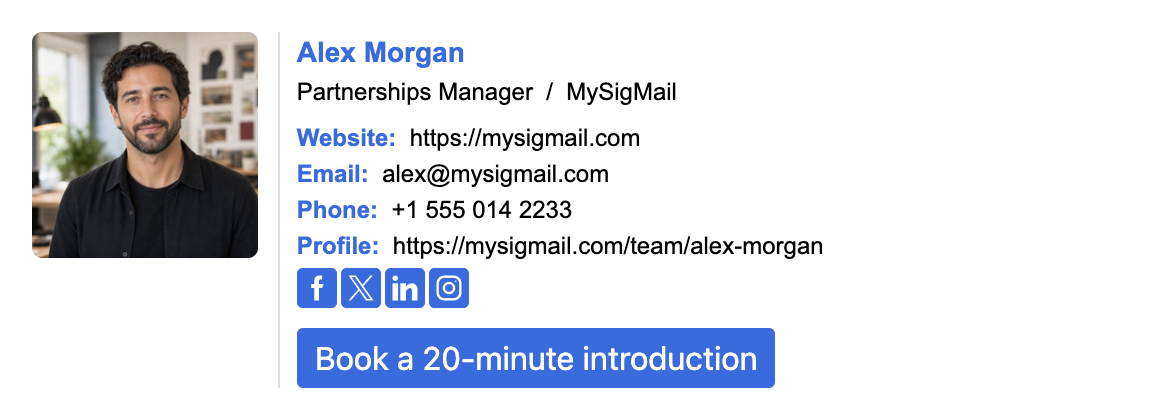
This is the place for the complete brand, essential contact details, and one relevant call to action.
A compact signature for replies
Long threads do not need the full block repeated under every response:

A compact reply version keeps the sender identifiable without making the conversation harder to scan. If you use a full logo in the first signature, consider an icon or text-only treatment in the reply version. See our practical logo do's and don'ts for new emails and replies.
You can build both variants in MySigMail, then paste the rendered signatures into Gmail. MySigMail creates the signature design; Gmail controls which sender address and message type receives each saved version. This is a manual, client-side setup—not centralized Google Workspace deployment.
Step 3: Map signatures to the alias and message type
Stay in Settings → General and find Signature defaults.
For each address:
- Choose the email address from the address dropdown.
- Under For new emails use, choose that identity's full signature.
- Under On reply/forward use, choose its compact signature.
- Repeat the process for every alias.
- Scroll to the bottom of the settings page and save changes if Gmail presents a save button.
Google's documentation separates the address selector from the two message-type selectors. Configure all three. Selecting a signature for new mail does not automatically make it the reply signature, and creating an alias does not automatically assign a signature to it.
You can also change the signature while composing a specific message with Gmail's Insert signature control. That is useful for exceptions, but consistent defaults prevent the wrong brand from being used in the first place.
Google's signature instructions describe multiple signatures, per-address assignment, and separate defaults for new messages and replies or forwards.
Step 4: Check the default From and Reply-To addresses
Signature selection does not control where a reply goes.
Under Settings → Accounts and Import → Send mail as, Gmail lets you:
- select Make default beside the address you want for new messages;
- select Edit info and specify a different Reply-To address when needed.
Google warns that changing only the From address does not automatically change Reply-To. If those addresses should match, verify both settings.
This matters when an alias represents a separate role or brand. A message that looks like it came from partnerships@mysigmail.com but sends replies to a personal inbox can confuse recipients and route conversations incorrectly.
Alias-to-signature worksheet
Complete this worksheet before changing Gmail settings. One row per sender identity is enough to expose missing signatures, unclear reply routing, or an alias that has not been verified.
| Identity or brand | From address | Audience | New-email signature | Reply signature | Reply-To | Send-as verified? |
|---|---|---|---|---|---|---|
| Alex Morgan | alex@mysigmail.com | Direct partner outreach | Alex Morgan — Full | Alex Morgan — Reply | Same as From | Yes |
| Partnerships | partnerships@mysigmail.com | General partnership inquiries | Partnerships — Full | Partnerships — Reply | alex@mysigmail.com | Yes |
| Your identity |
If two rows use different brands, review more than the name and logo. Check the website, social links, phone number, booking link, disclaimer, and campaign banner too. For a broader identity strategy, see why one-size-fits-all signatures break across audiences.
Test the mapping before relying on it
Run a small four-message check for every alias:
| Test | Expected result |
|---|---|
| New message from primary address | Primary full signature |
| Reply from primary address | Primary compact signature |
| New message from alias | Alias full signature |
| Reply from alias | Alias compact signature |
Send the tests to an address you can inspect outside the sending account. Check the visible From address, Reply-To destination, links, images, and signature formatting.
Gmail notes that some recipients may see the original Gmail address or an “on behalf of” presentation when mail is sent from another address. The original address may also appear in some automatic responses or delivery notices. If hiding the primary address is a hard requirement, test with the recipient systems that matter to you before adopting the workflow.
Troubleshooting
The alias is missing from the signature address dropdown
Open Accounts and Import → Send mail as and confirm that the address is present. Google's signature help specifically points to this section when the address dropdown is unavailable.
For a Google Workspace alias, ask the administrator to confirm that the alias was added to the correct user. Google says alias changes can take up to 24 hours to propagate. Workspace allows up to 30 aliases per user at no extra cost, but an alias is not a separate mailbox or account.
The verification email did not arrive
Search Spam or Bulk for a message from send-as-noreply@google.com. If the address is a Workspace group, the group's posting and delegate permissions may need to allow the verification message.
Gmail uses the right alias but the wrong signature
Return to Signature defaults, select the affected address, and check both selectors:
- For new emails use
- On reply/forward use
Then start a new draft and a reply as separate tests. Use Insert signature only to correct an exceptional message; fix the default mapping if the problem repeats.
Replies go to the wrong inbox
The From address and Reply-To address are separate Gmail settings. Open Send mail as → Edit info → Specify a different reply-to address, then test again from an external inbox.
The pasted signature loses its formatting
Paste the rendered signature, not raw HTML source. Our HTML signature walkthrough explains the browser-to-Gmail copy process and the tests worth running afterward.
A simple rule for managing several Gmail identities
Treat every alias as a separate sender identity and every conversation stage as a separate signature job:
- Alias chooses the brand.
- New versus reply chooses the amount of detail.
Create the variants first, name them consistently, map both defaults, and test From plus Reply-To from an external inbox. Once that foundation is correct, Gmail can keep the routine switching out of your daily workflow.
Build the full and compact versions in MySigMail, then install each one as a named Gmail signature.
Olivia writes about email signatures, professional branding, and email marketing — helping businesses make every email count.