
Best Teacher Email Signature Generator & Examples (2026)
Strange reality of the education world—maybe you’ve felt it too. People assume teachers spend their whole day at the whiteboard, but honestly? You probably spend half your life battling your inbox. Between anxious parents, administrative updates, student questions, and district memos, the pace is relentless. You’re grading, planning, differentiating instruction, putting out literal and metaphorical fires… rinse, repeat, hope for a Spring Break.
And in that chaos, where parents and admin decide—almost instinctively—whether you look organized or overwhelmed, that tiny block at the bottom of your email isn’t just "contact info." It’s your digital badge. It’s your boundary setter. It’s your "I am a professional, not a 24/7 hotline" card.
Funny how something that small can manage expectations for you while you’re off teaching a class or actually eating lunch for once. A sharp teacher signature establishes authority, provides quick resources (so they stop asking), and defines your availability without you having to type "I will reply within 24 hours" fifty times a day.
Quick takeaways, zero edu-jargon
- Set boundaries: Clearly stated "office hours" stop the midnight email expectation.
- Human factor: A professional photo reminds angry parents there’s a real human grading those quizzes.
- Resource hub: Links to Google Classroom or the syllabus answer questions before they are asked.
- MySigMail: A ridiculously easy builder that saves you from fighting with HTML code.
Why Your Signature Is Your Secret Classroom Management Tool
Picture this: you wouldn’t show up to Parent-Teacher conferences in pajamas. Same deal with your signature. It’s the digital demeanor you present, every single time you hit send.
- Stop the repetitive questions. Instead of replying to "Where is the homework?" for the tenth time, parents can just click the link in your footer.
- Establish authority. You worked hard for your credentials. Displaying "M.Ed." or your specific department title signals expertise.
- Protect your time. By explicitly listing your working hours, you implicitly tell parents/students that an email sent at 9 PM won't get a reply until morning.
Real Teacher Email Signature Examples
You’ve seen enough theory in PD sessions — here’s what these signatures actually look like. Four layouts built in MySigMail, from elementary-friendly to department-chair formal.
1. The Classroom Classic
The dependable default: name, grade and subject, school name, extension, and an office-hours line in small type.
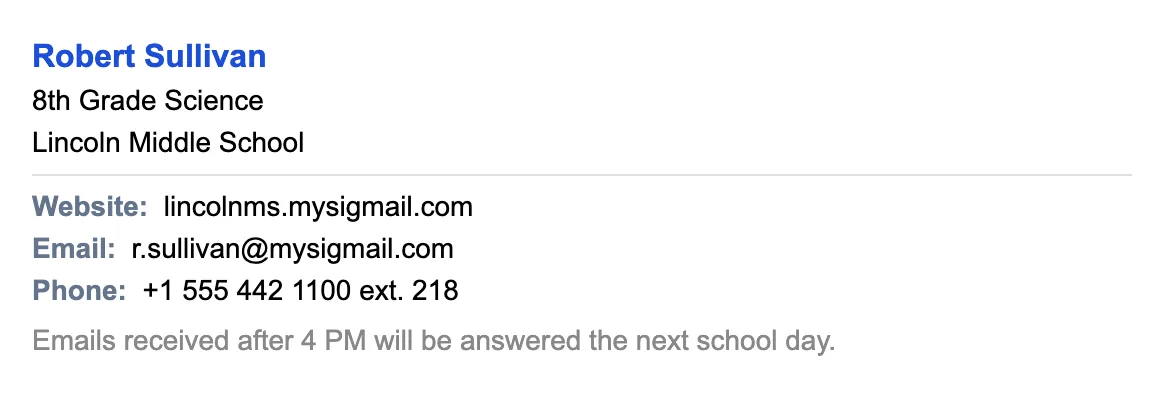
Why it works: it answers the three questions every parent email starts with — who are you, how do I reach you, and when will you reply. The office-hours line is the quiet hero: it sets the boundary once so you don’t have to type it fifty times.
2. The LMS Hub
The question-killer: school logo, your details, and labelled buttons for Google Classroom and the syllabus.
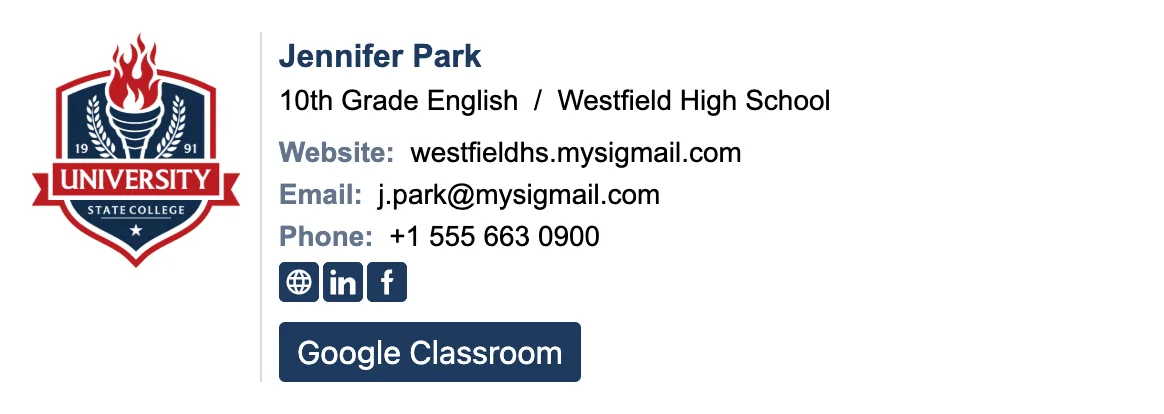
Why it works: “Where’s the homework?” and “Is there a study guide?” stop arriving in your inbox because the answer sits at the bottom of every email you’ve ever sent. The labelled buttons out-perform bare links — parents click what they can read.
3. The Friendly Elementary
Warmth first: smiling headshot, a soft accent color, school phone, and a “Class Website” link.
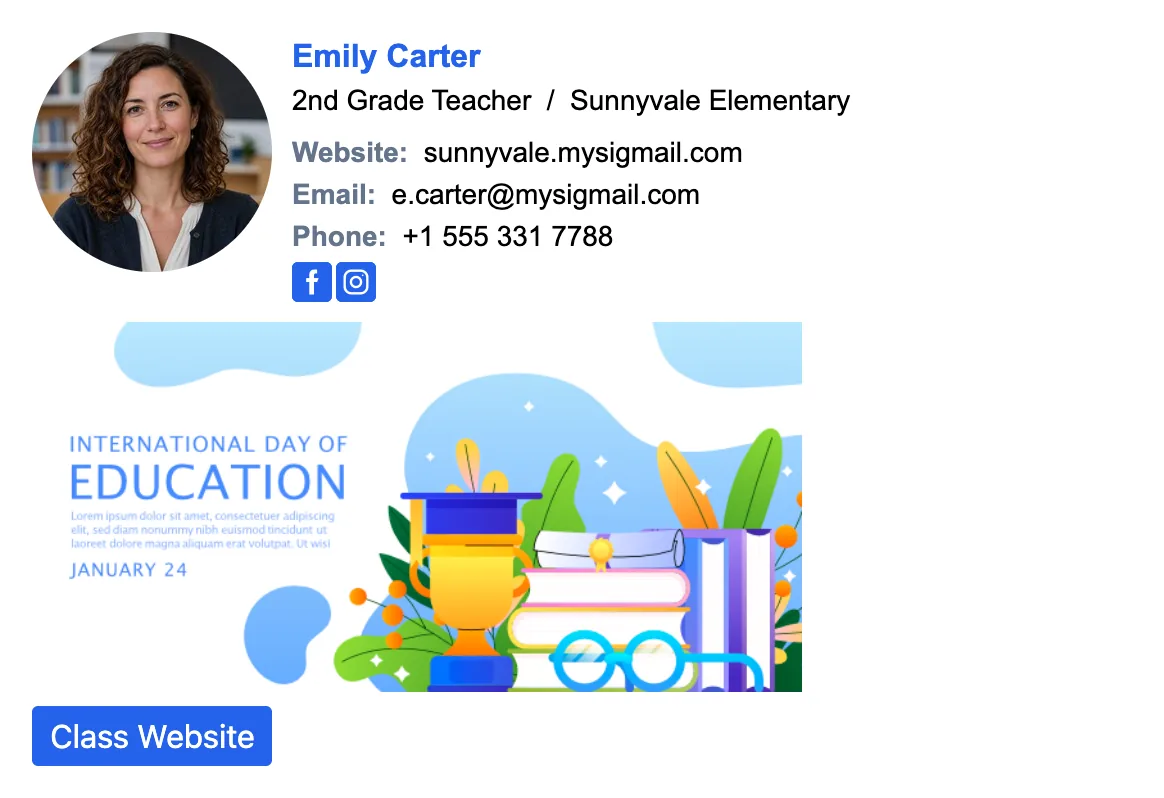
Why it works: in elementary school, parents are trusting you with their kid — the friendly photo diffuses tension before it starts. It’s genuinely harder to write an angry email to a smiling face.
4. The Department Chair
Credentials forward: name with M.Ed., “Science Department Chair,” school logo, labelled contact block, and office hours.
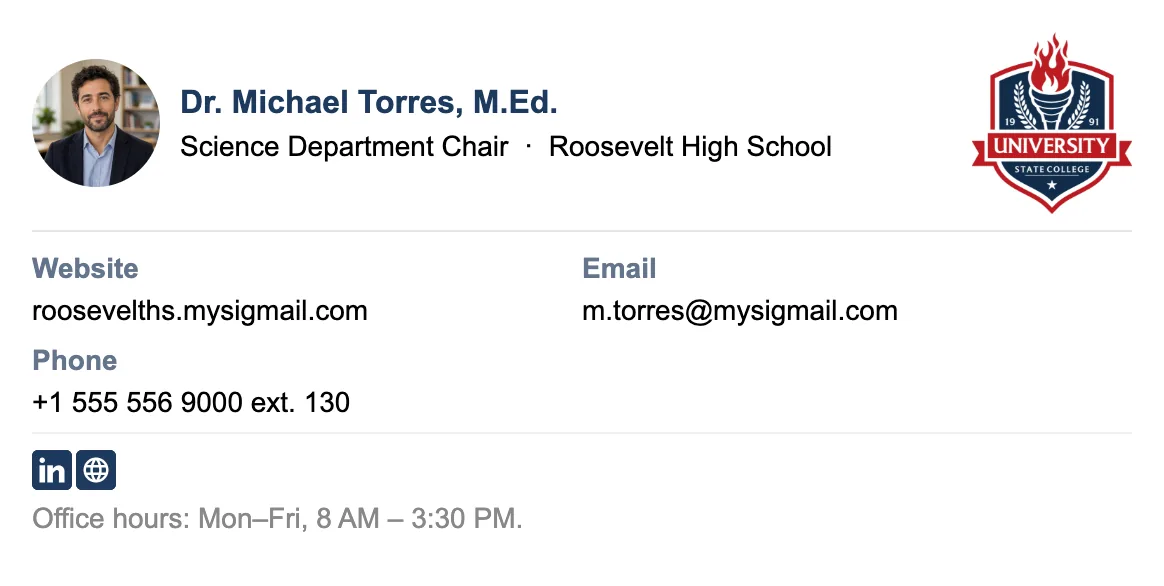
Why it works: when you email district admin, colleagues, and parents from the same address, the credentials and title carry weight in all three rooms. The structured layout signals the same organized authority you bring to the department.
Want one of these as your own? Open MySigMail and start from a template — every example above maps to a preset you can customize in minutes.
Five Ingredients Every Teacher Signature Needs
Think of this like a lesson plan template—basic, structural, but essential for things to run smoothly.
1. Your Name and Title
It seems obvious, but be specific. "Mr. Smith, 8th Grade Science & Department Chair." It adds weight to your words.
2. Office Hours / Availability
Non-negotiable. This is for your sanity. Add a simple line like: "Emails received after 4 PM will be answered the next school day."
3. Quick Links (The LMS Lifesaver)
If you use Canvas, Google Classroom, or Schoology, link it here. "Check homework & grades here" or "View the Syllabus."
4. School Contact Info
Include the school’s main phone number and your extension. Do not put your personal cell phone number unless you enjoy receiving texts during dinner.
5. A Professional Photo (Optional but Recommended)
It doesn’t have to be a stiff yearbook photo. Just something friendly and professional. It diffuses tension. It’s harder for a parent to send a nasty email when they see a smiling face looking back at them.
What to Avoid
- Comic Sans. I know, I know. Just don't. Stick to clean, readable fonts.
- Inspirational Quotes. Save the "Shoot for the moon" quotes for the classroom posters. Keep the email professional.
- Clutter. If your signature is longer than the email you wrote, it’s too much.
- Broken layouts on mobile. Parents read emails on their phones; make sure your info doesn't look like a scrambled puzzle.
How to Build One Without Losing Your Mind
Alright, theory’s nice. But actually creating the thing? Two real paths.
Option 1: The Smart Route (aka MySigMail)
Minimal effort, maximum polish.
- Create an account — free to start.
- Add your basics: Name, Subject/Grade Level, School Name.
- Drop in your school logo or headshot.
- Plug in your school contact info (Phone/Ext).
- Add your "buttons"—Link to the Class Website or Gradebook.
- Pick a template that looks clean and academic.
- Add your "Office Hours" disclaimer.
- Save, paste, celebrate with a coffee that is actually still hot.
Option 2: The Manual Grind (Gmail, Outlook, etc.)
Sure, you can build one from scratch. Be prepared to fight with invisible tables, wrestle with alignment settings that never seem to center correctly, and panic when your school logo suddenly appears the size of a billboard on a parent’s phone screen.
It’s definitely doable.
But it usually costs you an entire prep period (or your lunch break) just to get the spacing right. And the result? It often looks fine on your laptop but turns into a jumbled mess when viewed on an iPhone.
This is why MySigMail is a lifesaver for educators—it handles the coding and mobile optimization automatically, so you can get back to what actually matters: teaching.
FAQ



Recent Posts
Why We Open-Sourced MySigMail Card, an HTML Email Builder
August 26, 2026
How to Create a Digital Business Card With a QR Code
August 14, 2026
How to Make a Phone Number Clickable in an Email Signature
August 7, 2026
Gmail Aliases: Different Signatures for New Emails and Replies
July 24, 2026
30 Ways to Enhance Your Email Signature and Boost Your Professional Image
May 29, 2026