Double-Spaced Email Signature? How to Fix the Extra Line Spacing
October 6, 2026
If every line of your email signature has a blank-looking gap under it, each line is most likely a separate paragraph with spacing above or below it. The fix is to go back to the source of the signature, remove that paragraph spacing (or use line breaks instead), and paste a fresh copy. In our Gmail test, the toolbar's Remove formatting button did not fix the gaps on its own.
This guide explains how to tell where the spacing comes from and how to fix it. It is based on a test we ran in the Gmail signature editor on the web. Notes on Outlook and replies are clearly marked where we rely on other sources.
What we tested
On October 6, 2026, we pasted five versions of the same four-line signature into the Gmail signature editor (Gmail on the web, Chrome on macOS). The text, font and size were identical; only the markup that separates the lines changed. For each version we measured the distance between the tops of consecutive lines in the editor. For the versions marked below, we also saved the signature, reloaded the settings, and inserted it into a new message and into a reply draft. No emails were sent, so we did not test what a recipient sees.
| Version | How lines are separated | Gap between lines in Gmail | What else we checked |
|---|---|---|---|
| A | Paragraphs (<p>) with the browser's default spacing | 35 px: double-spaced | Same 35 px after saving, in a new message and in a reply |
| B | Paragraphs with 10 pt of space after each, the spacing Word uses by default | 34 px: double-spaced | Editor only |
| C | Paragraphs with spacing set to zero (margin: 0) | 21 px: single-spaced | Single-spaced in a new message (screenshot below) |
| D | Line breaks (<br>) | 21 px: single-spaced | Editor only |
| E | MySigMail export (contact lines) | 18 px for 12 px text: single-spaced | Same after saving and in a new message |
The text in A–D is 14 px with a 21 px line height. So 21 px is a normal line, and anything around 35 px means a full extra line of space. For B, Microsoft states that Word's default is 1.15 line spacing with 10 points of space after each paragraph, which is where that version's spacing comes from.
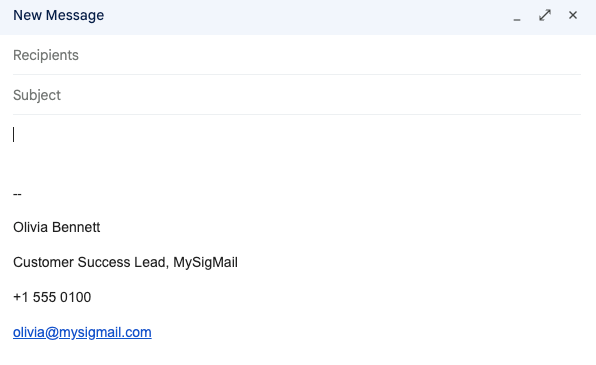
Version A in a new Gmail message. Each line is a paragraph with default spacing.
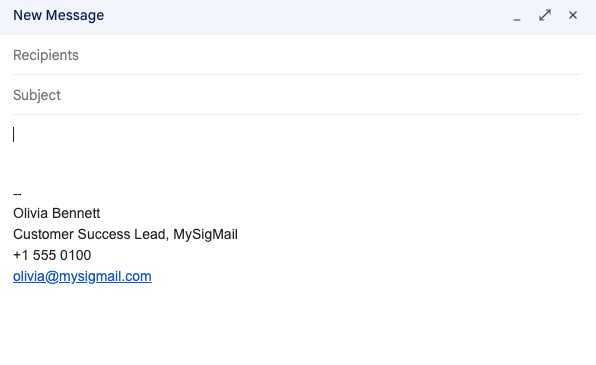
Version C: the same text with paragraph spacing set to zero.
Two things stood out:
- Gmail kept the spacing it was given. It did not add space to the single-spaced versions, and it did not remove space from the double-spaced ones. The gap came in with the pasted content.
- Replies did not change anything in Gmail. Version A looked the same in a reply draft as in a new message. In the reply, Gmail placed the signature below the quoted text, because Insert signature before quoted text in replies was turned off in settings.
Find out where the extra space comes from
Before changing anything, note when you first see the gap. That points to the cause.
| Where you see the gap | Likely cause | What to do |
|---|---|---|
| In the signature editor right after pasting | The copied content uses paragraphs with spacing, often from Word, Google Docs, a web page or an old email | Fix the spacing in the source and paste a fresh copy (step 1) |
| After typing the signature by hand in Outlook | Pressing Enter starts a new paragraph | Use Shift+Enter for new lines (see the Outlook section) |
| Only in sent mail, replies, or on the recipient's side | The sending or receiving email client changes the formatting | Test with your own addresses before changing the signature (see the replies section) |
| After typing by hand in Gmail | Not caused by Enter in our test | Check whether the text was pasted from somewhere else |
That last row is worth explaining. In Gmail's signature editor, we typed a line, pressed Enter, typed another, pressed Shift+Enter, and typed a third. Enter inserted a <div> and Shift+Enter inserted a <br>. Both produced single spacing. So in Gmail, double spacing is not caused by pressing Enter; it arrives with pasted content.
1. Fix the spacing in the source, then paste again
The cleanest fix is to correct the original and replace the signature completely.
- Open the original in the tool or document where you built the signature.
- Remove the paragraph spacing. In Word, select the signature and use Home → Line and Paragraph Spacing, then Line Spacing Options to set the space before and after paragraphs to 0, as described in Microsoft's guide. In other editors, look for paragraph spacing or "space after paragraph" settings.
- Copy the formatted signature directly from the source.
- In Gmail, open Settings → See all settings → General → Signature, select all the content of the signature you are fixing, and paste.
- Click Save Changes, then open a new message and insert the signature to check it.
If you want to keep the old version while testing, create a separate signature first, as in our Gmail aliases guide. Leave your signature defaults unchanged until the new version looks right.
2. If you have no source: remove the empty lines by hand
Sometimes the signature exists only in Gmail. Here is what happened when we tried the obvious tools on version A:
- Remove formatting (the Tx button in the editor's More formatting options menu): the paragraph gaps turned into real empty lines (
<br><br>between lines). The gap was even slightly larger than before, and the font changed to Gmail's default. - Pasting as plain text (Cmd+Shift+V on a Mac): the same empty lines appeared.
- Deleting the empty lines: placing the cursor at the start of each line and pressing Backspace once removed one empty line each time. The result was single-spaced.
So for a simple text-only signature, Remove formatting followed by deleting the empty lines works, but you lose the original font, colors and link styling. For a signature with a layout, photo, icons or a banner, rebuilding it from a proper source is usually faster than repairing it by hand.
3. Outlook: use Shift+Enter, and know what is still unresolved
We did not test Outlook. The advice below comes from Microsoft's Q&A community, not from Microsoft's official documentation, so treat it as a starting point.
- When typing a signature in Outlook, the most common recommendation is to press Shift+Enter instead of Enter. Enter starts a new paragraph, which can carry paragraph spacing; Shift+Enter inserts a line break within the same paragraph.
- If the spacing is already there, select the signature text and set the space before and after paragraphs to 0 in the paragraph settings, or rebuild it with Shift+Enter.
- If spacing appears only in new messages or replies, you may be dealing with a client issue rather than your signature. In one Microsoft Q&A thread from February 2026, users of Outlook for Mac and the new Outlook for Windows reported space being added before and after signature lines. The thread did not identify an official cause, and the suggested workarounds worked for some users and not for others.
4. Gaps only in replies or on the recipient's side
In Gmail on the web, the signature in a reply draft looked exactly like the one in a new message. If yours looks fine while composing but different after sending, the formatting is probably being changed by the sending app (for example a mobile app or desktop client) or by the recipient's email client.
To narrow it down without bothering anyone else:
- Send a test message to another address you own, ideally one opened in a different email client.
- Reply to that message from the second account, then reply back.
- Compare where the gaps first appear: in the first received message, or only after a reply.
We did not run this send-and-receive test, so we cannot say which clients change signature spacing. The point of the test is to find out whether the problem is in your signature or happens later.
How MySigMail signatures handle line spacing
MySigMail lays signatures out with tables. The name, job title and contact lines are paragraphs with an inline margin: 0 and a line height of 150%. Inline styles travel with the signature when you paste it, so the paragraphs carry their own zero spacing instead of picking up a default.
To check this, we copied the signature HTML exactly as Get Signature → Copy as Select does: the signature's HTML goes to the clipboard as formatted content. We then pasted it into the Gmail signature editor. The contact lines stayed single-spaced at 18 px for 12 px text, both after saving and in a new message (version E in the table). The 150% line height is deliberate: it keeps lines readable without opening gaps between them.
Two things to keep in mind:
- Use Copy as Select for pasting into Gmail. Copy as HTML copies source code, which is a different installation method.
- If you edit the signature in Gmail after pasting it, any new lines you add are Gmail's own markup. They will not necessarily match the line height of the rest of the signature. It is usually cleaner to change the signature in MySigMail and paste a fresh copy.
If your current signature has spacing problems and no clean source, build it in MySigMail and paste it into Gmail. Then check it in a new message and send yourself a test before setting it as your default. If Gmail refuses to save a larger signature, see our guide to the Gmail signature too long error.



Recent Posts
Double-Spaced Email Signature? How to Fix the Extra Line Spacing
October 6, 2026
Gmail Signature Too Long? How to Fix the Error
September 17, 2026
Why We Open-Sourced MySigMail Card, an HTML Email Builder
August 26, 2026
How to Create a Digital Business Card With a QR Code
August 14, 2026
How to Make a Phone Number Clickable in an Email Signature
August 7, 2026