How to Fix Oversized Email Signature Images
December 11, 2025
So, you’ve picked out a great template in MySigMail. The layout is solid, the spacing is clean, and it fits your brand perfectly. You reach the step where you upload your banner image into the design, use the slider to tweak the size until it looks aesthetically pleasing, and hit save.
In the editor, it looks professional and sharp. But then you send a test email, and disaster strikes: that carefully adjusted banner renders as a massive image, blowing up the template and pushing your contact details off the screen.
It’s a frustrating moment, but a common one. Even if you adjusted the slider correctly in the settings, some email clients simply ignore those instructions.
Here is why this happens, why the "x2" rule for Retina screens matters, and how to fix it using the "Show image sizes" tool.
The Problem: When Email Clients Ignore Your Slider
The root of the issue is how different email apps (like Outlook or older versions of Gmail) read code.
When you want your banner to look crisp on modern high-resolution screens (like MacBooks or iPhones), the standard practice is to upload an image at x2 resolution. For example, if your template allocates a space that is roughly 250px wide for a banner, you might upload a 500px file so it doesn't look pixelated or blurry on a Retina display.
Next, you can play around with the sliders that control the size and achieve the desired visual display of the image in the template. Technically, the editor adds code telling the browser: "Show this large image, but display it at this smaller size."
The catch? Some email clients ignore the "display size" instructions entirely. They look at the physical file you uploaded (the 500px version) and render it at full scale.
The result: Your recipient sees the huge, raw file instead of the neat, scaled-down version you designed, breaking the visual balance of the signature.
The Solution: Match the File to the Space
To prevent this layout shift, you need to ensure the physical file size isn't drastically larger than what is needed, or at least use a method that "locks" the width. You have two simple ways to do this:
- Resize During Upload (The Easy Way): MySigMail actually has a built-in feature for this. When you select your file to upload, look for the option to "Resize width". You can set the physical limit right there before it even hits the editor.
- Pre-edit on Your Computer: If you prefer total control, open Photoshop or your favorite editor. Resize the source image to the exact width you need.
This acts as a safety net. Even if an email client ignores your slider settings, the image physically cannot expand beyond its actual dimensions.
Introducing the "Show Image Sizes" Tool
Since the maximum width of a signature is generally limited to 550px for aesthetic reasons, and banner slots vary wildly between templates, it is hard to guess if your file is too big just by looking at it.
To help you spot potential problems, MySigMail introduced a diagnostic toggle called "Show image sizes".
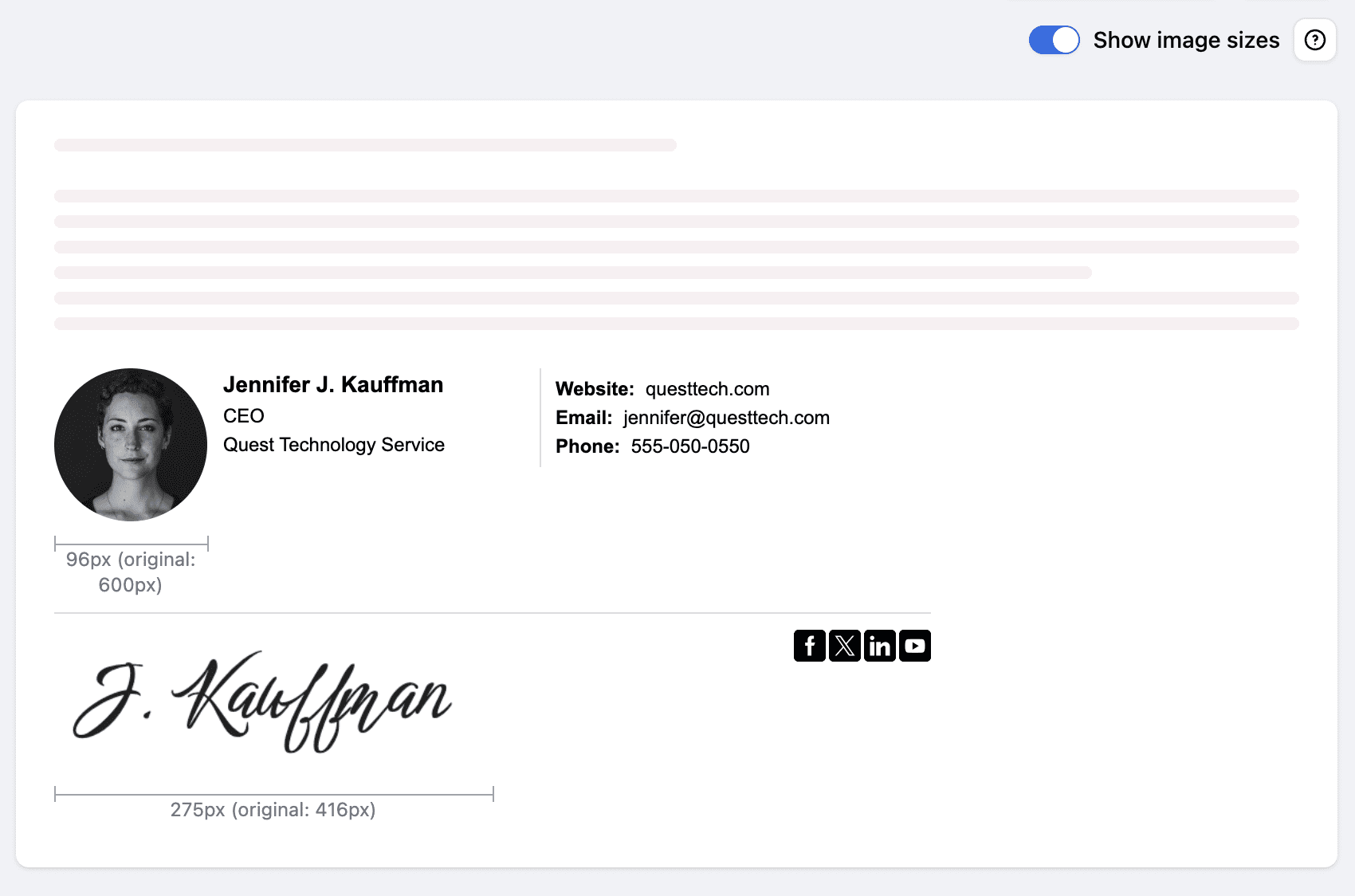
You can find this in the email signature preview area. When you turn it on, the system displays the technical dimensions under your images.
The data looks like this:
275px (original: 416px)
Here is how to read it:
- 275px: This is the visual size you set with the slider (how it should look in the template).
- original: 416px: This is the actual physical size of the file you uploaded.
How to troubleshoot:
If you see a massive difference (like a 275px display size but a 416px original file), your signature is at risk of breaking.
- Toggle on "Show image sizes".
- Check if your banner’s original width is excessively large compared to the display width.
- Delete the risky image.
- Re-upload it using the Resize width option in the uploader (or resize it on your computer first) to bring it closer to the desired display size.
Important: Avoid Copying from Safari
One last thing that causes distortion has nothing to do with file sizes: your browser. If you are a Mac user, do not copy your final signature from Safari.
Safari handles clipboard data differently than other browsers. When you copy a signature from Safari to paste it into your email settings, it often strips away the specific styling code that constrains image sizes. This can cause even perfectly resized banners to revert to their original full dimensions.
Recommendation: Always use Google Chrome when generating and copying your signature from MySigMail. It ensures the code transfers cleanly and preserves your layout exactly as you designed it.
If you're setting up your signature for the first time, our installation FAQ covers Gmail, Outlook, Apple Mail, and Outlook Web step by step. And if you're having trouble with signatures on mobile, see email signatures and mobile devices — 5 things to keep in mind.



Recent Posts
Why We Open-Sourced MySigMail Card, an HTML Email Builder
August 26, 2026
How to Create a Digital Business Card With a QR Code
August 14, 2026
How to Make a Phone Number Clickable in an Email Signature
August 7, 2026
Gmail Aliases: Different Signatures for New Emails and Replies
July 24, 2026
30 Ways to Enhance Your Email Signature and Boost Your Professional Image
May 29, 2026