
Enhance Your Email Marketing Strategy with Signature Banners
April 19, 2023
Treat a signature banner as a campaign, not permanent decoration. Choose one goal, one audience, one offer, and one landing page, then make one action primary. Track banner and CTA destinations separately, pilot the campaign, and define continue, revise, and stop rules before launch.
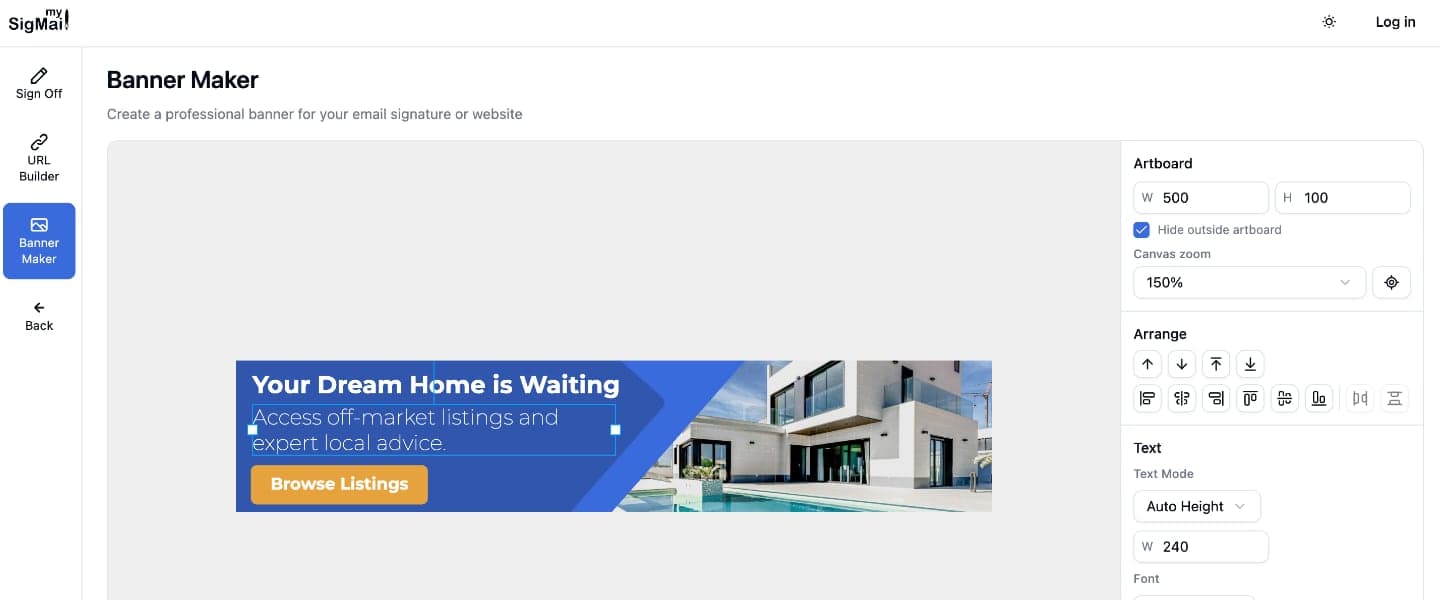
This playbook focuses on campaign operations. If you need help creating the artwork itself, use the MySigMail Banner Maker tutorial. For a deeper analytics setup, see the guide to tracking link clicks in email signatures.
1. Write the Campaign Brief Before Designing
A banner has limited attention and space. Multiple offers leave no clear next step. Begin with a one-sentence brief:
For audience, promote offer to achieve goal, sending interested recipients to landing page.
For example: “For prospects and customers who receive sales emails, promote the summer webinar to generate qualified registrations on the webinar page.”
The audience should reflect who actually receives messages from participating senders. Recruiting candidates, account-management customers, and support users are different contexts.
The landing page must complete the banner's promise. “Reserve your webinar seat” should lead to that event, not a homepage. Match the offer, date, and action.
2. Choose One Primary CTA
The primary CTA is the intended action: register, download, view, or request. Make it obvious in the banner and landing page.
Contact details can remain, but should not compete visually. A bright “Book a demo” button beside a webinar banner creates two campaigns in one space.
If a separate CTA button remains, give it a supporting job:
- Banner → webinar registration page
- CTA button → speaker agenda or campaign portfolio
Track both destinations separately. Even when they share a page, distinct utm_content values reveal which element was clicked.
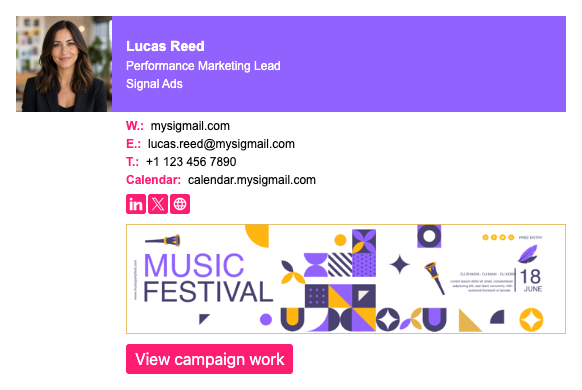
MySigMail provides banner and CTA addons; click tracking is available with Plus. There is no native A/B testing, department segmentation, or server-side deployment, so rollout is manual.
3. Complete a Campaign Worksheet
Record the operating decisions in one place before anyone installs the signature.
| Field | Campaign decision | Example |
|---|---|---|
| Goal | One measurable business outcome | Qualified webinar registrations |
| Audience | Recipients likely to see participating senders' emails | Prospects and active customers |
| Offer | One clear reason to click | Live summer webinar |
| Primary CTA | Action phrase used in the campaign | Reserve your seat |
| Banner destination | Page opened by clicking the banner | /events/summer-webinar |
| CTA destination | Page opened by the separate button | /work/campaigns |
| Participating senders | Named people for the staged rollout | Two sales representatives, then the sales team |
| Start and end | Planned campaign window | Launch date through event cutoff |
| Owner | Person responsible for links, QA, and decisions | Campaign manager |
| Tracking convention | Shared UTM values and link-specific content | summer_webinar; banner / button |
| Success action | Valuable action after the click | Completed registration |
| Review points | Dates for launch, early QA, and final decision | After pilot, after expansion, at cutoff |
Name an owner to confirm the page, approve artwork and links, collect installation confirmations, and remove expired campaigns.
4. Name UTM Parameters Consistently
Use one naming convention for the entire rollout. Lowercase values with underscores are easy to read and less likely to split into accidental variants in analytics.
For the banner:
https://example.com/events/summer-webinar?utm_source=email_signature&utm_medium=email&utm_campaign=summer_webinar&utm_content=banner
For the separate CTA button:
https://example.com/work/campaigns?utm_source=email_signature&utm_medium=email&utm_campaign=summer_webinar&utm_content=button
Keep these values stable:
utm_source=email_signatureidentifies the placement.utm_medium=emailkeeps the channel consistent.utm_campaign=summer_webinargroups both campaign elements.utm_content=bannerorutm_content=buttondistinguishes the clicked element.
Do not mix values such as EmailSig, email-signature, and signature_email; analytics reports them separately. Google Analytics recommends consistent campaign naming and documents utm_content as the field for distinguishing creatives or links. Store and test final URLs from the worksheet.
UTMs measure visits to pages you control. MySigMail Plus can show click activity, but neither proves business impact alone. Connect clicks to registrations or qualified requests where your analytics and consent setup allows.
5. Build for Images-Off and Recipient Variation
Images are not guaranteed to display. Keep the sender's name, company, and contact information as HTML text; the banner should not contain the only usable identity or contact route.
Write alt text that communicates purpose and action, such as “Register for the Summer Product Webinar on August 12.” Google's branded Gmail guidance recommends adding alt text. Describe what the linked image does, not every visual detail.
Expect client differences. Google says oversized images can break Gmail signatures and formatting may vary. Microsoft supports images in Outlook signatures, while Apple documents how to add an image to a Mail signature. Test recipients rather than promising identical rendering.
6. Run a Staged Rollout
Start with one or two relevant senders. Install manually and test real messages and threads before expanding.
A practical sequence is:
- Owner QA: Verify copy, artwork, destinations, UTMs, landing page, and analytics.
- Pilot: Install for one or two senders and check real new messages and replies.
- Correct: Fix any rendering, link, or message-context problem.
- Expand: Install manually for the remaining named senders.
- Confirm: Record who installed which version and when.
- Close: Remove or replace the campaign at its planned cutoff.
For different team campaigns, maintain sender lists and distribute the correct version manually. Record installation confirmation.
To compare variants, run a manual sequential test: version A for a defined period, then B for a comparable period with the same senders, audience, landing page, and rules. Record holidays, urgency, or volume shifts. The result is directional, not a controlled experiment.
7. Use a Pre-Launch QA Checklist
- The campaign has one documented goal, audience, offer, and landing page.
- One CTA is visually primary.
- Banner and button destinations match their promises.
- Both URLs load over HTTPS without unexpected redirects or access requirements.
- UTM source, medium, campaign, and content values follow the worksheet.
- The landing page works on desktop and mobile.
- The banner has useful alt text.
- Essential sender details remain HTML text.
- The signature is readable with images blocked.
- The banner does not become oversized on a narrow screen.
- New messages, replies, and forwards remain usable.
- Test messages have been inspected in Gmail, Outlook, and Apple Mail where relevant.
- Click tracking and the valuable downstream action appear in the expected reports.
- The owner, participating senders, review dates, and removal date are recorded.
8. Make Decisions without Invented Benchmarks
There is no universal “good” signature-banner CTR. Results depend on volume, recipient relationships, relevance, placement, and the available denominator. Do not import a generic advertising benchmark.
Use decision rules tied to your own goal:
- Continue when links work, the campaign reaches the intended audience, and tracked visits produce enough relevant downstream actions to justify keeping it active.
- Revise when the banner receives clicks but the landing page does not produce the intended action. Check promise match, page clarity, mobile behavior, and form friction.
- Refresh when the offer, date, artwork, or recipient context changes; when repeat recipients have seen the same promotion for too long; or when the next campaign has higher priority.
- Stop when the offer expires, the landing page is removed, links break, the campaign attracts clearly irrelevant traffic, or continued placement no longer supports the stated goal.
Low click volume alone does not identify the cause. Confirm installation, intended recipients, and final tracked URLs. A small sample may be inconclusive.
Troubleshooting
Clicks are recorded but conversions are not
Test both journeys. Confirm UTM preservation, the valuable-action event, and promise match. Compare banner and button traffic separately.
No clicks appear
Open the installed link from a test message. Check parameters, tracking protection, consent behavior, report filters, and installed versions.
The banner is too large or blurry
Resize for the display role, preserve aspect ratio, re-upload, and inspect a composed message. Do not rely on removable CSS.
Images are missing or shown as attachments
Check remote-image blocking and HTTPS. If only some recipients see an attachment, their server or client may be responsible. Keep the text signature functional.
The signature overwhelms reply threads
Use a compact reply signature without the campaign banner, or remove the banner once it has already appeared in the thread. Preserve the sender's identity and one useful contact route.
Variant results are hard to compare
Check whether senders, dates, audience, destination, or offer changed between sequential versions. Record the difference and treat the result as directional. Do not present it as automated A/B testing.
Operate the Campaign to Its End
A signature banner campaign is ready when its brief, destinations, UTMs, owner, rollout, QA, and stop date are documented. Launch narrowly, verify the real messages recipients receive, and expand only after the pilot works. Measure the action that matters, refresh the creative when context changes, and remove the campaign when its promise is no longer current.



Recent Posts
Double-Spaced Email Signature? How to Fix the Extra Line Spacing
October 6, 2026
Gmail Signature Too Long? How to Fix the Error
September 17, 2026
Why We Open-Sourced MySigMail Card, an HTML Email Builder
August 26, 2026
How to Create a Digital Business Card With a QR Code
August 14, 2026
How to Make a Phone Number Clickable in an Email Signature
August 7, 2026